What it does
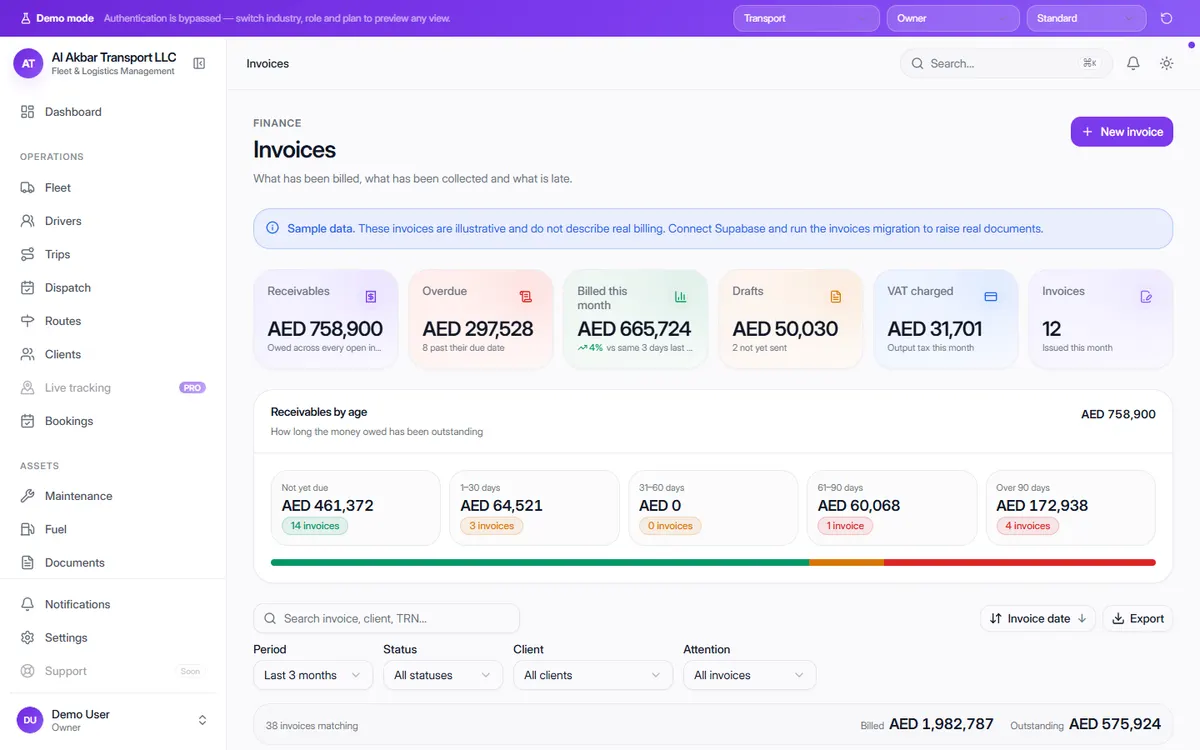
Transport companies often do the work and then wait months to be paid. OneFlow's invoicing keeps every invoice with its client, dates, status, amount collected and balance, and shows overdue invoices right on the dashboard.
Receivables are grouped by age — not yet due, 1–30, 31–60, 61–90 and over 90 days — so you know exactly which clients to chase first. Payments are recorded against invoices in the Payments module.
In the demo, the screen describes itself as: What has been billed, what has been collected and what is late.
What the screen shows
- Receivables — owed across every open invoice
- Overdue — amount and number of invoices past due
- Billed this month, compared with last month
- Drafts not yet sent
- VAT charged — output tax this month
- Receivables by age: not yet due, 1–30, 31–60, 61–90 and over 90 days
- Per invoice: billing period, client and tax number, issue and due dates, status, collected, total and balance
Why it helps
Chase the right clients first
Receivables by age show which money has been outstanding longest and is most at risk.
Overdue invoices on the dashboard
Invoices past their due date appear as alerts with the client and amount owed, so they aren't forgotten.
VAT in the same place
VAT charged on invoices is totalled for the month, and client tax numbers are kept on each invoice.
See it in the live demo
Open the free live demo, choose “Transport” on the first screen and click Invoices in the sidebar. No sign-up is needed — everything you see is sample data.
Transport management software — all modules
Frequently asked questions
Does OneFlow handle VAT on invoices?
The demo, set up for a UAE company, shows VAT charged on invoices and each client's tax registration number (TRN). A deployment is configured for your business and tax setup.
How do I know who owes me money?
The receivables-by-age chart groups open invoices by how long they've been outstanding, and overdue invoices also appear as alerts on the dashboard.
Where is it in the demo?
Open the live demo, choose “Transport” and click Invoices or Payments under Finance.